πŸ“– THE PLAYBOOK

Every feature, one minute each.

Short, honest tutorials. No videos to sit through β€” each one is a few numbered steps and a tip you'll actually use.

πŸŽ™οΈ Record your first noteβ€Ί

The core loop: talk messy, get a clean note with a title, summary, key points, and real tasks.
Tap the mic button β€” the big one at the bottom, or the "Capture an idea" card on Home.
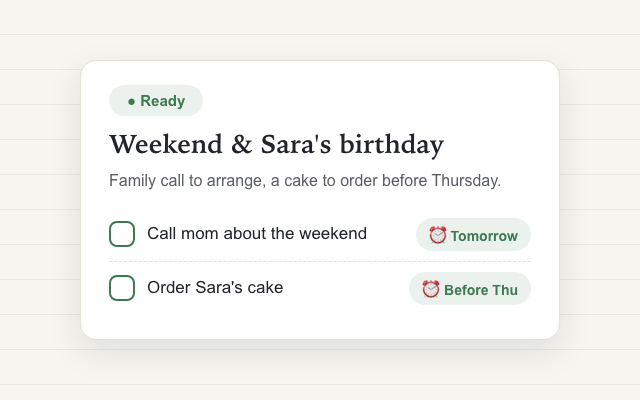
Say it how it comes out. Rambling is the point: "call mom tomorrow… we're out of coffee… Sara's birthday is Friday, cake before Thursday."
Tap stop, then Save. A few seconds later the note opens itself: summary, key points, and tasks with the dates you said out loud.
Tip: lock the screen or switch apps mid-thought β€” the recording keeps going, and you'll get a notification when the note is ready.
Step-by-step walkthrough
πŸ—£οΈ Hands-free with Siriβ€Ί

Capture without touching the phone β€” even from your pocket, even locked.

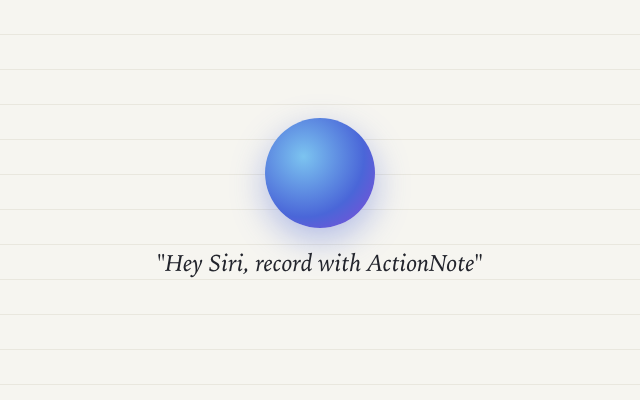
Say "Hey Siri, record with ActionNote." The app opens straight into a running recording.
Talk. As long as you like.
Say "Hey Siri, stop recording in ActionNote." It saves and organizes β€” this works from the lock screen too.
Tip: driving? Mount the phone, keep it unlocked with navigation on, and the two phrases make the whole capture hands-free.
Step-by-step walkthrough
⚑ Quick Record widget & Action Buttonβ€Ί

One tap from the lock screen or home screen to a running recording.
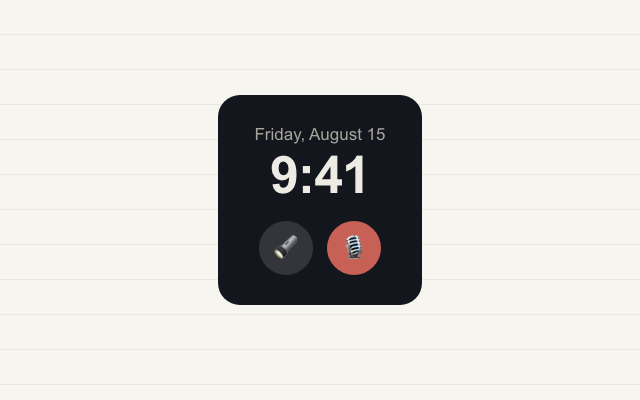
Lock screen: long-press the lock screen β†’ Customize β†’ add the ActionNote circular widget below the clock.
Home screen: long-press any empty spot β†’ Edit β†’ Add Widget β†’ ActionNote.
Action Button (iPhone 15 Pro and later): Settings β†’ Action Button β†’ Shortcut β†’ "Record with ActionNote".
Tip: every one of these skips the splash screen β€” you're recording in under a second.
Step-by-step walkthrough
πŸ“² Import WhatsApp voice notesβ€Ί

The 7-minute voice note from your friend, readable in 20 seconds.
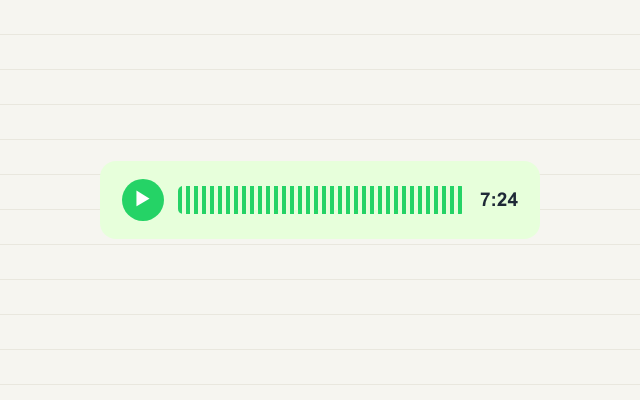
Long-press the voice note in WhatsApp (or any audio file, anywhere) and choose Forward β†’ Share.
Pick ActionNote in the share sheet.
Open ActionNote. The note is processed like your own recording β€” summary, points, tasks.
Tip: works with voice memos, meeting recordings, and audio files from anywhere the share sheet exists.
Step-by-step walkthrough
πŸ’¬ Ask Your Notesβ€Ί

Everything you've ever captured becomes something you can question.
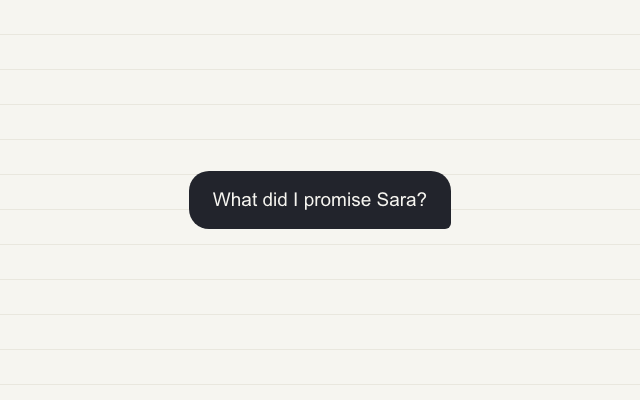
Open Ask from Home.
Ask like you'd ask a person: "What did I promise Sara?" Β· "When is the dentist?" Β· "What was my idea about the trip?"
Check the source. Every answer cites the note it came from β€” tap it to read the original.
Tip: you can also ask by voice β€” "Hey Siri, ask ActionNote what I promised Sara" β€” and hear the answer read back.
Step-by-step walkthrough
βœ… Tasks & remindersβ€Ί

Dates you say out loud become reminders that actually ring.
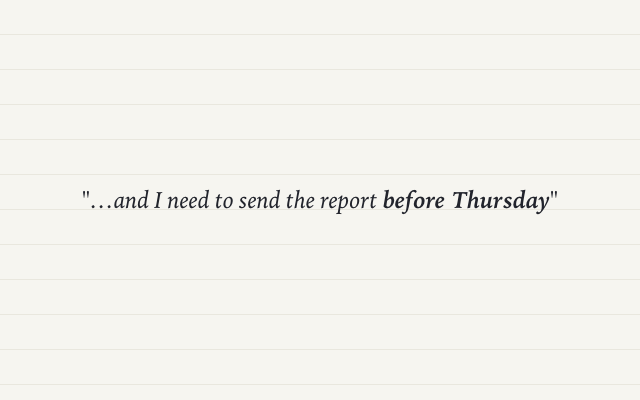
Say the deadline while recording: "send the report before Thursday" β€” the task arrives with Thursday attached.
Tap the bell on any task to add or change its reminder.
Promote key points: tap the + next to any key point to turn it into a task, or "Convert all to to-do list".
Tip: the Tasks tab collects every open task across all notes β€” one list, all your notes.
Step-by-step walkthrough
🌍 Two languages, one noteβ€Ί

Speak how you actually speak β€” Arabic and English in the same sentence is the reason this app exists.
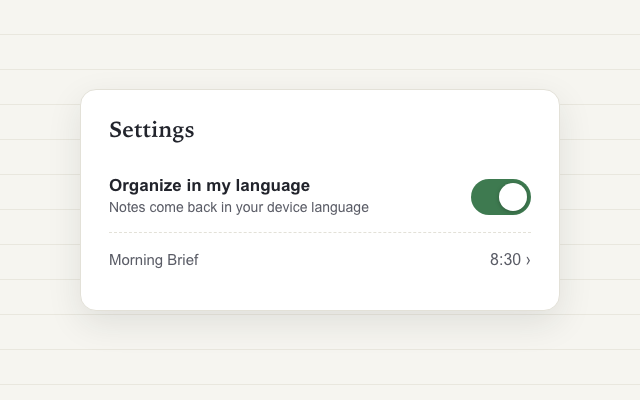
First, turn the switch on: Settings β†’ Organize in my language. This is what makes the ⇄ flip possible.
Just record. Mix languages mid-sentence β€” speak how it actually comes out.
The note arrives in your language, with a ⇄ chip next to "Ready".
Tap ⇄ to flip to the spoken version β€” and back, anytime.
Tip: the transcript always keeps exactly what you said, in the languages you said it.
Step-by-step walkthrough
πŸ“€ Share & exportβ€Ί

Clean formatted text that pastes nicely anywhere β€” free for everyone.

Open a note β†’ share icon. You get formatted text with the title, summary, and tasks.
Paste anywhere: Notion, Todoist, email, WhatsApp β€” it lands clean.
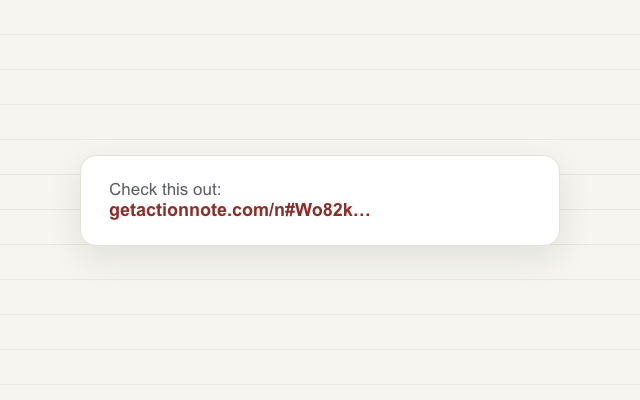
Sharing to another ActionNote user? The share carries the note itself β€” they tap once to import it.
Tip: exporting is free forever β€” your notes are yours, subscribed or not.
Step-by-step walkthrough
☁️ Account & backupβ€Ί

Notes live on your iPhone and your own iCloud β€” there is no ActionNote database.

Try first, sign in later. Your first notes work with no account at all.
When you sign in, the notes you made as a guest come with you automatically.
iCloud backup is on by default: reinstall the app, sign in, and everything returns.
Tip: cancel any subscription anytime β€” your notes stay on your device and iCloud. You just go back to the free monthly limits.
Step-by-step walkthrough
⌚ Apple Watch ARRIVING IN v1.2β€Ί

Record on your wrist β€” even offline on a run. The phone does the thinking.
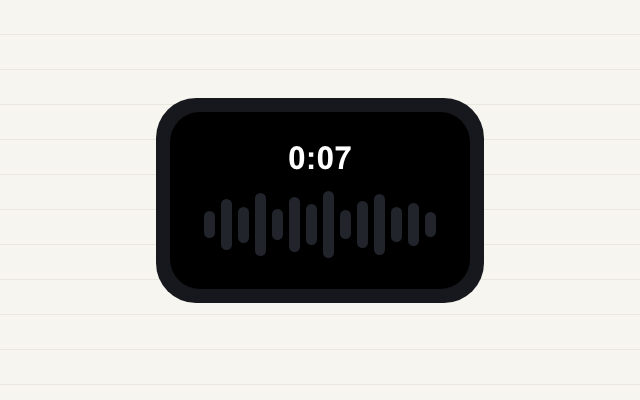
Open ActionNote on the watch. It starts recording immediately β€” that's the whole UI.
Tap stop. "Saved β€” will sync when your iPhone is nearby."
That's it. The note appears on your phone, processed like any other β€” even if the phone was at home the whole time.
Tip: no pairing, no setup, no account on the watch. If it's paired to your iPhone, it just works.
Step-by-step walkthrough
β˜€οΈ Morning Brief ARRIVING IN v1.2β€Ί

Your tasks, deadlines, and meetings in one notification, every morning. Free forever.
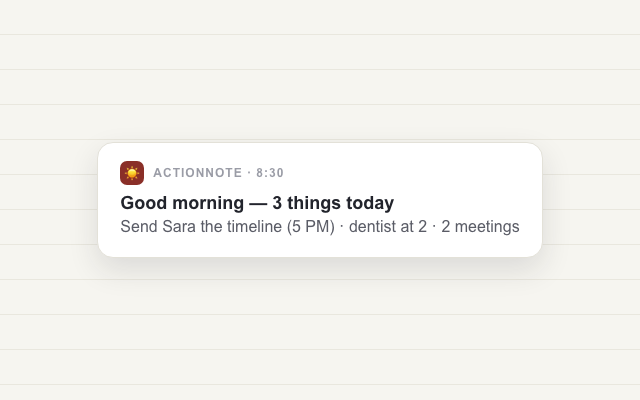
It's on automatically β€” arrives at 8:30 by default.
Change the time: Settings β†’ Morning Brief.
Want your meetings in it? Settings β†’ Morning Brief β†’ turn on Include calendar. Read on-device β€” never uploaded.
Tip: quiet days stay quiet β€” no tasks and no meetings means a gentler brief, not guilt.
Step-by-step walkthrough